2.1 Customize login UI
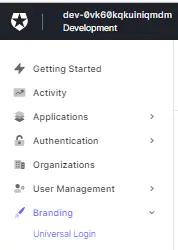
1. Go to ‘Universal Login’ page
On the sidebar on the Auth0 management dashboard, go to “Branding” => “Universal login”.
2. Add logo and primary color
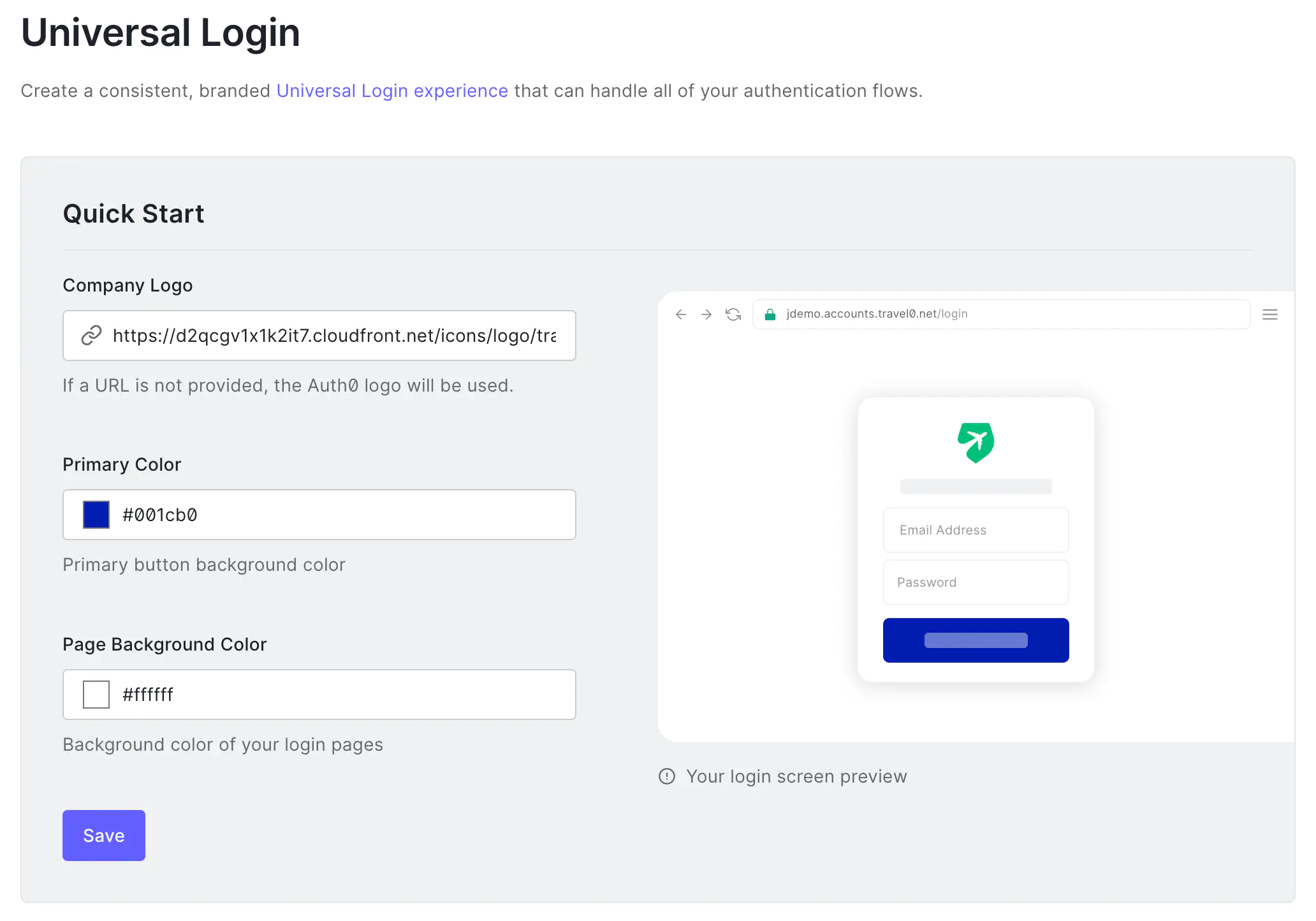
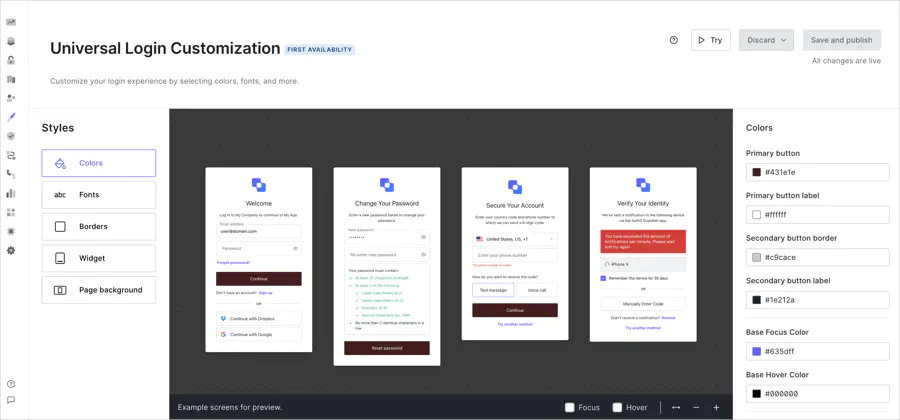
With Auth0’s No-Code Editor, you can style widgets in the New Universal Login experience to fit your brand. You can personalize the color, font, borders, and backgrounds of the widgets your customers see for login, password reset, authentication, and more.
- Change the company logo. You can use an image from here: Find a free logo on flaticon
3. Select Cutomization options
- Change button colors under the
Colorssection - Change the widget position under the
Widgetssection - Change page background image and widget layout under the
Page backgroundsection
You can use an image on this website: https://www.pexels.com/search/toys/?orientation=landscape
4. Done!
Test the login page again to see the customization live.